

How to Track Leads in GA4 and Google Tag Manager (2026)
If your website gets visitors but you can’t say how many became enquiries, you are guessing. Knowing how to track leads in GA4 shows you which pages, campaigns and keywords produce real enquiries and which only produce traffic.
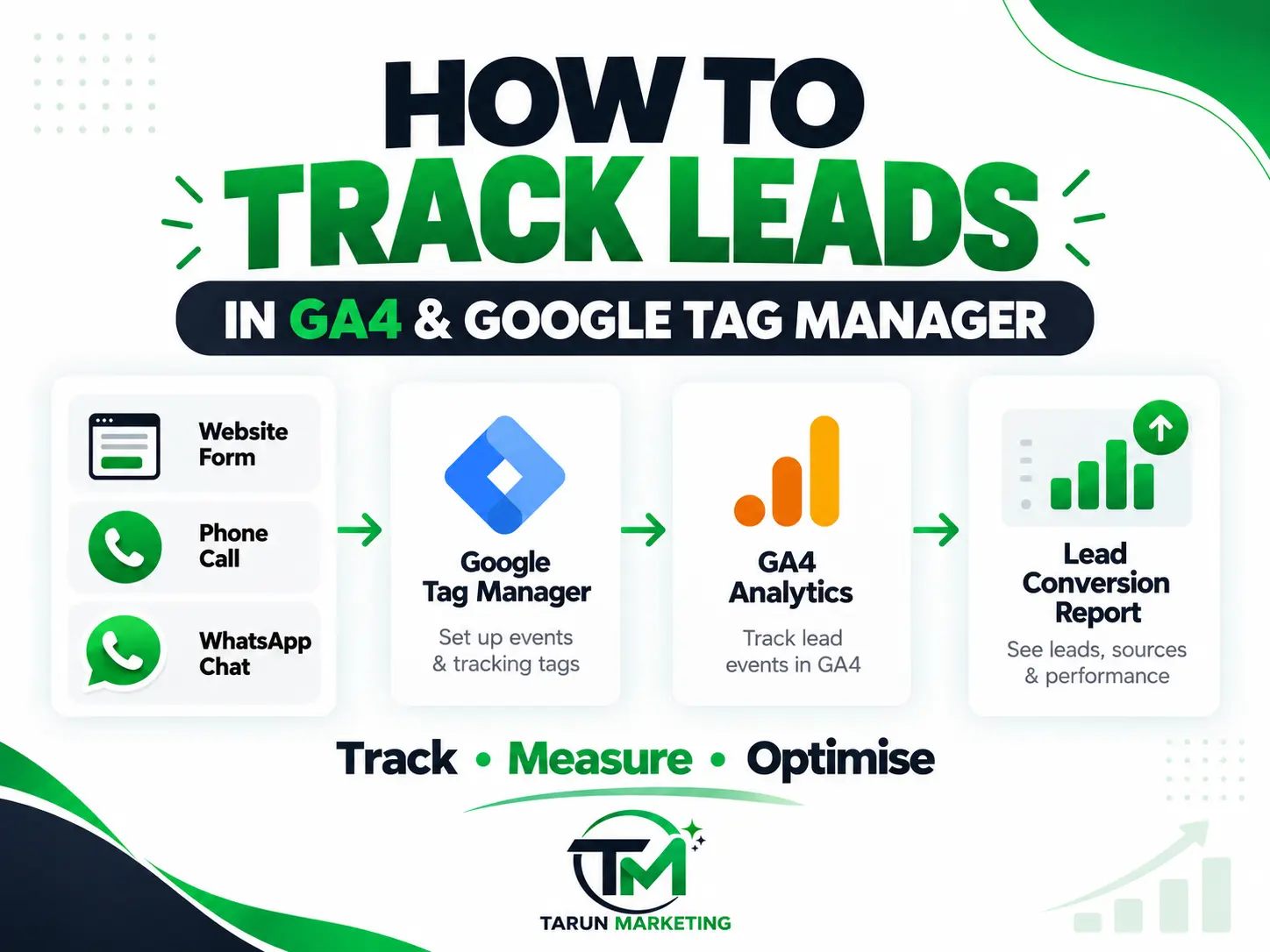
This guide covers the full setup using Google Analytics 4 (GA4) and Google Tag Manager (GTM). By the end, you will be tracking form submissions, phone-call clicks and WhatsApp clicks as leads, and you will know how to test each one before trusting the numbers. No coding is needed.
What counts as a lead on your website?
A lead is any action where a visitor shows clear intent to become a customer. For most service businesses, that means:
- Form submissions: a contact, quote or booking form.
- Phone clicks: a tap on a call button on mobile.
- WhatsApp clicks: a tap on a WhatsApp chat link.
- Email clicks: a click on a mailto link.
Decide your list before you open any tool. Tracking everything makes your reports noisy, so track only the actions that mean someone wants to talk to you.
What you need before you start
- A GA4 property for your website and its Measurement ID, which starts with
G-. - A Google Tag Manager container installed on your site.
- Editor or admin access to both tools.
- For forms, a thank-you page or on-screen thank-you message that appears only after a successful submission.
If you are not sure GTM is installed, open Tag Assistant and enter your site’s address. It lists every Google tag it finds.
Step 1: Check that GA4 and GTM are working
Open your site, then open your GA4 property and go to Reports → Realtime. You should see yourself as an active user within a minute. If you don’t, fix this first, because nothing else in this guide will work without it.
In GTM, confirm that your Google tag (the one carrying your G- Measurement ID) fires on all pages. Most installations already have this.
Step 2: Plan your lead events
Give each action a clear event name so your reports stay readable. Use lowercase words with underscores.
| Lead action | Event name |
|---|---|
| Contact or quote form submitted | generate_lead |
| Tap on a phone number | click_to_call |
| Tap on a WhatsApp link | click_whatsapp |
| Tap on an email link | click_email |
generate_lead is one of Google’s recommended event names, so use it for forms. The others are custom events you name yourself.
Step 3: Track form submissions
This is where most setups go wrong. Many WordPress forms, including Elementor forms, submit without reloading the page, so GTM’s built-in Form Submission trigger often fires at the wrong time or not at all. The most reliable method is to send visitors to a thank-you page after a successful submission and track that page.
First, set up the thank-you page
- Create a simple page at an address like
/thank-you/. - In your form’s settings, set it to redirect to that page after submission.
- Mark the page “noindex” so it doesn’t appear in search results. Rank Math has this option on each page.
Then create the trigger in GTM
- Go to Triggers → New.
- Name it “Lead – Thank You Page”.
- Choose Page View as the trigger type.
- Select Some Page Views and set the condition: Page Path contains /thank-you.
- Save.
Now create the tag
- Go to Tags → New and choose Google Analytics: GA4 Event.
- Enter your Measurement ID, or select your existing Google tag.
- Set the event name to
generate_lead. - Attach the trigger you just made.
- Name the tag “GA4 – Lead – Form” and save.
Anyone who lands on the thank-you page after submitting the form now counts as a lead.
Also Read – How to Choose the Right Performance Marketing Agency for Your Business
Step 4: Track phone-call and WhatsApp clicks
These don’t need a thank-you page. You track the click itself.
Turn on the click variables
- In GTM, go to Variables → Configure under Built-In Variables.
- Tick Click URL and Click Text.
Phone-click trigger
- Create a new trigger of type Click – Just Links.
- Select Some Link Clicks.
- Set the condition: Click URL starts with tel:.
- Name it “Click – Phone” and save.
Phone-click tag
- Create a new GA4 Event tag with the event name
click_to_call. - Under Event Parameters, add
link_urlwith the value{{Click URL}}. - Attach the phone trigger and save.
WhatsApp
Repeat the same steps with the trigger condition Click URL contains wa.me, the event name click_whatsapp, and the same link_url parameter.
Do the same for email links with Click URL starts with mailto: if you want to track them.
One limit to know: a click on a phone number means the visitor tapped it, not that a call connected. It is still a strong sign of intent.
Step 5: Test everything before you publish
Never publish a tag you haven’t tested. Wrong lead data is worse than none.
- In GTM, click Preview and enter your website address. Tag Assistant opens your site in a new tab.
- Complete a test form submission. Back in Tag Assistant, check that the
generate_leadtag fired once, and only on the thank-you page. - Click your phone and WhatsApp links. Check that each tag fires once, and only on that click.
- In GA4, open Admin → Data display → DebugView. Your test events should appear there within seconds.
If a tag fires twice or on the wrong page, go back to its trigger and tighten the condition.
Step 6: Publish the GTM container
- In GTM, click Submit.
- Give the version a clear name, such as “Lead tracking: form, phone, WhatsApp”.
- Click Publish.
Your tracking is now live.
Step 7: Mark your lead events as key events
GA4 only treats an event as a conversion when you mark it as a key event. Google renamed “conversions” to “key events”, so older tutorials may use the old name.
- In GA4, go to Admin → Data display → Events.
- Find
generate_lead,click_to_callandclick_whatsappin the list. New events can take up to 24 hours to appear after the first one fires. - Switch on Mark as key event for each one.
Menu names change from time to time, so if you can’t find an option, search the Analytics Help Center for “key events”.
Step 8: Read your lead data
Once key events are on, open Reports → Acquisition → Traffic acquisition. The key events column shows how many leads each source produced: organic search, direct, social, paid or referral.
Look at these questions first:
- Which channel brings the most leads, not just the most visitors?
- Which pages do converting visitors land on first?
- Which campaigns bring clicks but no leads?
Standard reports can take up to a day to fill in. Realtime and DebugView update immediately.
Common mistakes to avoid
- Counting your own tests. Filter out internal traffic, or note the dates of your tests so you can ignore them.
- Double counting. A thank-you page that people refresh can record one lead several times. Keep the trigger condition specific and check your numbers against your inbox.
- Forgetting to mark key events. Without this step, GA4 reports events but not conversions.
- Tracking too much. Five clear lead events beat thirty vague ones.
- Ignoring consent rules. If your site serves visitors in regions with consent requirements, make sure your cookie banner and tags are set up to respect them.
Why lead tracking improves your marketing
Once leads are tracked, every other channel gets easier to judge. You can see which blog posts and service pages produce enquiries, so your SEO work can focus on those pages. You can also import key events into Google Ads, so the platform optimizes for enquiries instead of clicks. If you serve a local market, tracking will also show how much of your Google Business Profile traffic turns into calls. Our Jalandhar digital marketing page shows how location-based pages are built around this kind of goal.
Frequently asked questions
Does GA4 track form submissions automatically?
GA4’s enhanced measurement can record some form interactions, but it is unreliable for forms that submit without a page reload. A thank-you page with a GTM trigger is more accurate.
Do I need Google Tag Manager to track leads in GA4?
Not strictly, but GTM lets you add and change tracking without editing your site’s code each time, which is why most marketers use it.
How long does it take for leads to appear in GA4?
Realtime and DebugView show events within seconds. Standard reports can take up to 24 hours.
Is GA4 free?
Yes. Both GA4 and Google Tag Manager are free for most websites.
Conclusion
Tracking leads in GA4 comes down to three steps: define what a lead is, fire an event when it happens, and mark that event as a key event. Test every tag before you publish, and check your numbers against your real enquiries.
If you would rather have this set up for you, along with the SEO and ads that bring the leads in, get in touch with Tarun Marketing or message us on WhatsApp at +91 78883 74011.
)